Table of Contents 7 sections
Which shopper searches deserve more of your Amazon PPC budget, and which are spending money without paying for themselves? To learn how to read an Amazon PPC search term report, start with the Customer Search Term column, then match each row to its campaign, ad group, and target. Use clicks, spend, orders, and attributed sales to decide whether to add a target, exclude a term, or collect more data.
Download a Sponsored Products search term report for one marketplace and choose a date range with enough time for conversions to register. In Google Sheets, sum spend and sales before calculating ACoS. Compare each term with your margin-based goal, then check the original campaign and ad group before applying changes.
Downloading Your Amazon PPC Search Term Report
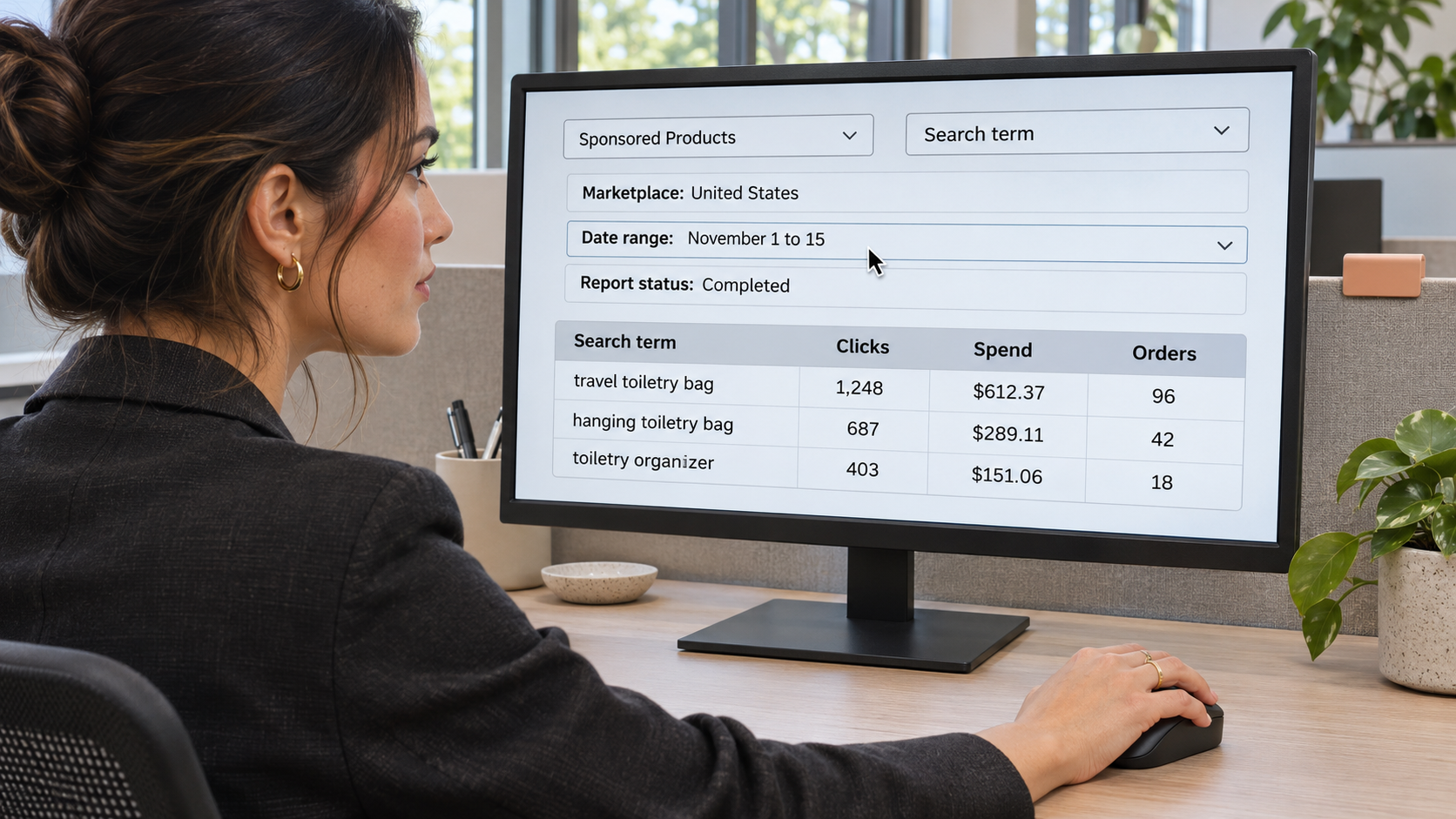
Download the Sponsored Products search term report from the reporting area in the Amazon Ads console. Select Sponsored Products as the ad product and Search term as the report type. Choose your date range, give the report a name that identifies the marketplace and period, then download it once it finishes processing.

Keep the downloaded file as your original and import a copy into your working spreadsheet. Record the marketplace, currency, reporting dates, and download date so you can compare exports consistently. If you manage ads in the US and UK, keep those exports separate so you can review local search language and costs in the correct currency.
Report Type and Date Range
Choose a window that captures enough traffic for the decision you want to make. Start with four weeks for a routine review, then widen the window for low-volume products if pricing, availability, and promotions were reasonably consistent. Review promotional periods on their own when temporary discounts or extra traffic could distort your comparison.
Use a summary export to evaluate terms across the full period or a daily export when a change in price, bids, or stock needs closer inspection. If you combine successive exports, check their dates before appending them. Overlapping periods can count the same traffic twice and make a search term appear ready for action sooner than it is.
How to Read the Report Columns
Read each row from customer search term to target to outcome. The first field describes the search or product context linked to the ad click, the target explains what matched, and the performance columns show what followed. Campaign and ad group identify where you can make a change.

Check the sales and order column labels before comparing one export with another. Use fields with the same attribution window and scope throughout your analysis. Attributed sales measure revenue credited to ads, so pair that figure with product costs, fees, and margin when you judge profitability.
Customer Search Terms vs Campaign Targets
Customer search terms show the shopper query or product context associated with a click. Campaign targets are the keywords, products, or automatic targeting groups eligible to match. A broad target such as “glass food containers” might surface the more specific query “glass lunch container with dividers.”
The same shopper query can appear under several targets because it matched ads in different places. Keep keyword match types in view when you compare those rows. A term can perform well with one advertised product and spend inefficiently with another, especially when the listings differ in price, size, or features.
Traffic, Spend, and Sales Metrics
Start with clicks, spend, orders, and attributed sales, then calculate efficiency from those totals. Advertising cost of sales, or ACoS, is spend divided by attributed sales. If a term has $24 in spend and $120 in sales, its ACoS is 20%. If sales are zero, leave ACoS blank and review the spend and clicks directly.
Use cost per click to see how much traffic costs and order rate to see how often it converts. If your margin before advertising is 30%, a 30% ACoS roughly breaks even on those attributed sales when both figures use the same revenue basis. Use a lower ACoS goal when you want to retain profit after ad spend, and factor those limits into your Amazon PPC cost planning.
| Metric | Calculation | Decision it informs |
|---|---|---|
| Average cost per click | Spend ÷ clicks | Check how much you pay to bring a shopper to the listing. |
| Order rate | Attributed orders ÷ clicks | Compare how often traffic from different terms converts. |
| Cost per order | Spend ÷ attributed orders | Compare the cost of a sale with the contribution available per order. |
| ACoS | Spend ÷ attributed sales | Check performance against your product’s margin-based goal. |
Analyzing Search Terms in Google Sheets
Use Google Sheets pivot tables to group repeated search terms and see how much each one spent and sold across your account. Set up a tab for the raw export and a separate tab for the analysis. Confirm that clicks, spend, orders, and sales import as numbers before you build the pivot.

Keep the original search term visible when you create a helper column to trim spaces or standardize capitalization. Preserve word order and modifiers such as “with dividers” because they can signal which product a shopper wants. If you need help with the interface, follow Google’s pivot table instructions while setting up your rows and values.
Pivot Tables for Search Term Performance
Put Customer Search Term in Rows, then add clicks, spend, orders, and sales to Values and summarize each by SUM. Calculate ACoS and order rate beside the pivot using the aggregated totals. If your totals are in columns C for spend and E for sales, use =IF(E2>0,C2/E2,"") for ACoS and format the result as a percentage.
Averaging ACoS values gives a small row the same weight as a large one. If one row recorded $5 in spend on $10 in sales and another recorded $15 on $90, the combined ACoS is 20% because total spend was $20 on $100 in sales. Sort by spend first to find the terms most likely to affect your budget.
Breakdowns by Campaign and Ad Group
Add Campaign Name and Ad Group Name beneath Customer Search Term in the pivot to show where each term generated spend and orders. Expand any row where strong sales in one area could be masking weak results elsewhere. Use the targeting and match type fields to trace the difference back to the ads that served.
Check the advertised products before making a change in Campaign Manager. A query for a six-pack may convert in the ad group that sells that size and struggle in the one advertising a four-pack. Carry the campaign and ad group into your action sheet so you can adjust the specific area you reviewed.
Identifying Keywords to Target or Exclude
Add targets when shopper intent fits the advertised product and the term has enough conversion evidence to justify a dedicated bid. Exclude terms that are clearly irrelevant or that keep spending beyond the amount you can afford to acquire an order. For relevant terms with limited data, record a review threshold and keep watching.
Set that threshold using your margin and average order value. If you can spend $12 to acquire an order at your target margin, a relevant query with $12 in spend and no orders deserves a closer look once conversions have had time to register. Check intent and past performance before choosing a bid reduction or an exclusion.
“When you’re learning how to read an Amazon PPC search term report, start with what you can afford to spend per order. Then decide how much more data a relevant query is worth.”
Turn a relevant query with repeat orders and acceptable ACoS into an exact match keyword when you want to control its bid directly. Check whether the keyword already exists and where it is running. Put it with the advertised product that fits the query so its performance is easy to assess.
Start with a bid informed by the term’s historical cost per click and your allowable ad spend per order. Track whether the new target earns traffic and whether its cost per order stays within your goal. Factor bid and campaign structure into the decision as part of your broader advanced Amazon PPC strategies.
Search Terms to Add as Negatives
Use a negative exact keyword to exclude a specific unwanted query with limited impact on other searches. Use negative phrase when the full phrase signals a mismatch wherever it appears, such as “replacement lid” when you sell container sets and have no standalone lids. Review the matching variations before applying a phrase exclusion.
For a relevant term with weak sales, check whether bids, price, or listing content may be contributing to the result. A query that converts in one ad group may only need an exclusion in the ad group where the product is a poor fit. Record where you applied each negative and review the next complete report for changes in spend and order volume.
Key Takeaways
Review search terms against product-level margins and make changes at the campaign or ad group where you saw the result. Your account’s overall ACoS can hide terms that spend heavily without generating orders, as well as profitable searches that warrant their own bids. Ranking terms by spend helps you start where a change can have the most impact.
Keep a decision log so you can connect later performance with the change you made. Record the term, its original placement, the date, and whether you added a target, added a negative, or chose to wait. If campaigns often run out of budget before profitable terms get enough traffic, review your Amazon PPC budget mistakes alongside your term decisions.
Use this checklist for how to read an Amazon PPC search term report during your weekly review. Begin with one marketplace and a completed reporting period. Pick a manageable set of terms so you can check the effect of each change.
- Sum spend, clicks, orders, and sales by term before calculating rates.
- Check high-spend terms against your allowable cost per order.
- Verify the campaign and ad group before adding a target or negative.
- Set a follow-up date for terms that need more conversion data.
Frequently Asked Questions
Read report rows in the context of how Amazon records clicks, placements, and ad sales. Some entries describe product contexts, and recent figures may change when you rerun the export. Recognizing those cases helps you avoid acting on a misleading comparison.
When figures look unusual, compare a single campaign over a completed window first. Check the column definition and filters before investigating individual rows. Keep a record of what you matched so you can repeat the reconciliation later.
Why does a search term sometimes appear as an ASIN?
An ASIN commonly signals that the click came from a product context, such as an ad shown on a product detail page. The identifier represents an item in Amazon’s catalog. Read the targeting field to see which rule matched it.
Look up the ASIN in the same marketplace. Check what the product is and whether your offer fits shoppers viewing it. Use that context when evaluating it as a product target.
Why might recent ad sales change after you download the report?
Recent ad sales can rise when a shopper clicks an ad and buys later within the applicable attribution window. An export captures the data available when you run it. A later download can include those purchases.
Record when you ran the report. Compare recent figures again after the attribution window has elapsed. Use the updated export when deciding whether a costly relevant term should stay active.
Why can report totals differ from Campaign Manager totals?
Totals can differ when the export and Campaign Manager use different filters, metrics, or levels of aggregation. Compare the same marketplace, ad product, campaign set, dates, and attribution definition. Check when each view was refreshed.
Reconcile clicks and spend for one campaign first. Then check how each view defines orders and sales. This makes it easier to tell whether the difference comes from the selected data or how the metrics are counted.
Does the report include search terms that received no clicks?
The Sponsored Products search term report includes terms that received at least one ad click. Queries that produced impressions alone are outside that view. Use the report to study the traffic that reached a listing.
For visibility questions, review impression metrics in the relevant campaign or targeting view. Use them to see which campaigns or targets received exposure. Keep those totals in mind when comparing them with your click-based export.
Conclusion
Reading your search term report well helps you decide where your next advertising dollar should go. Group recurring terms, compare their cost with what each product can afford, and verify the campaign and ad group before applying a change. This week, review one marketplace’s highest-spend queries and log the targets, exclusions, and terms you want to revisit.
If you run an established Amazon FBA brand and want another set of eyes on the listings your ads send shoppers to, request a Free Audit. The listing review can help you identify conversion opportunities to investigate alongside your search term data.